eyeHear 1.7
Built for iPhone Duo, with a new Caption Size setting and a History that groups your conversations.


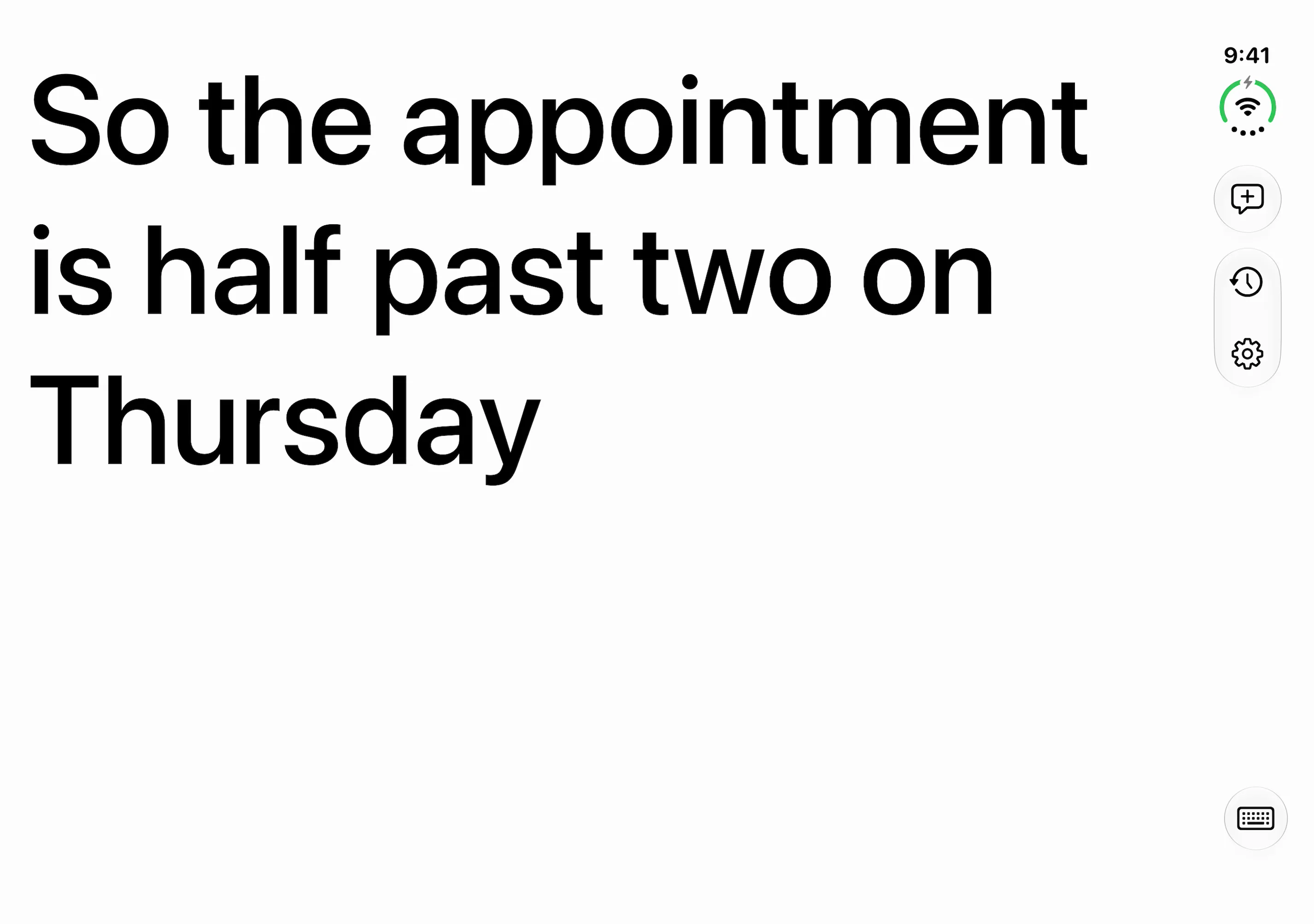
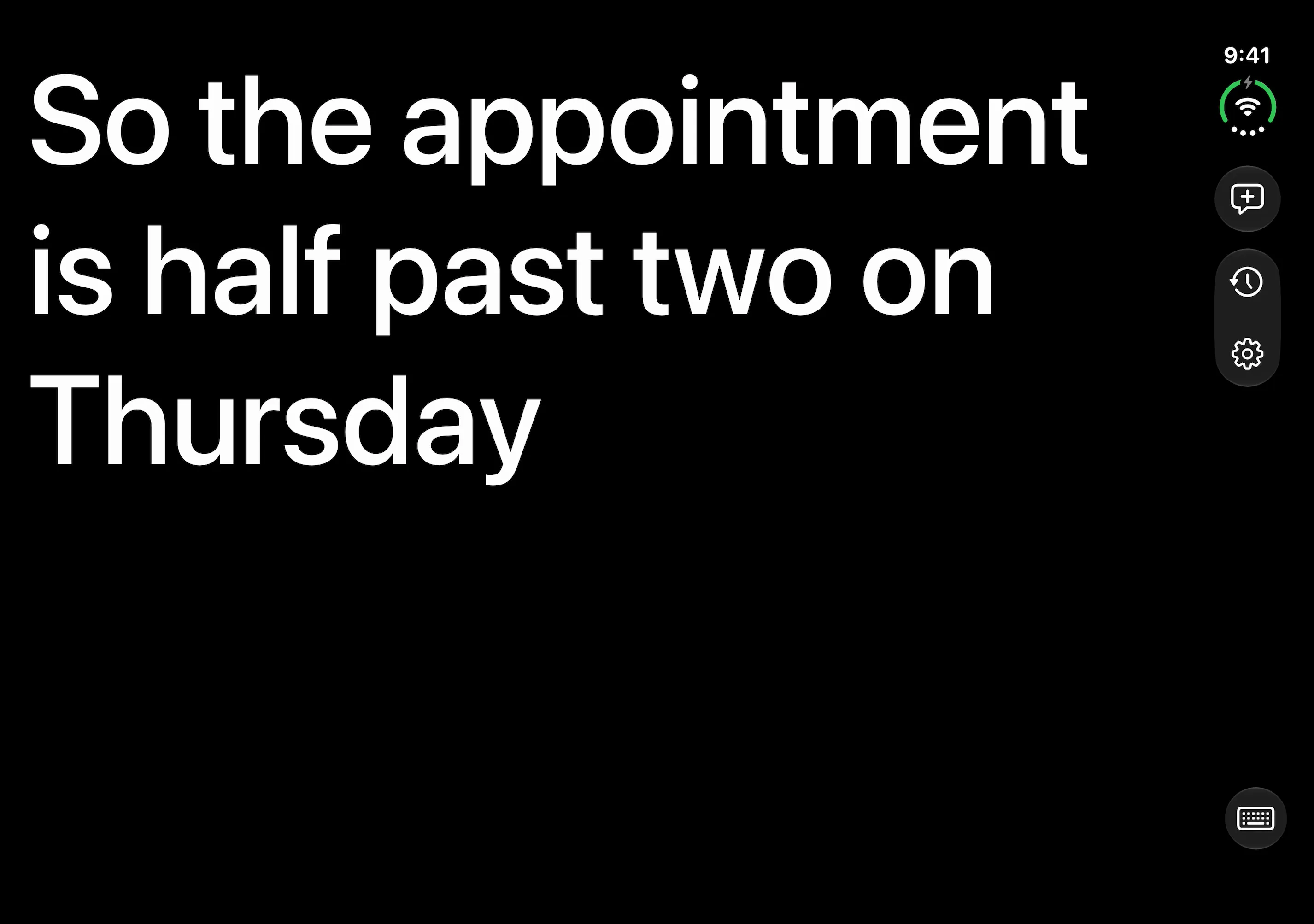
Built for iPhone Duo: captions fill the open screen, History sits beside your conversations, and you can use Split View or open more than one window.
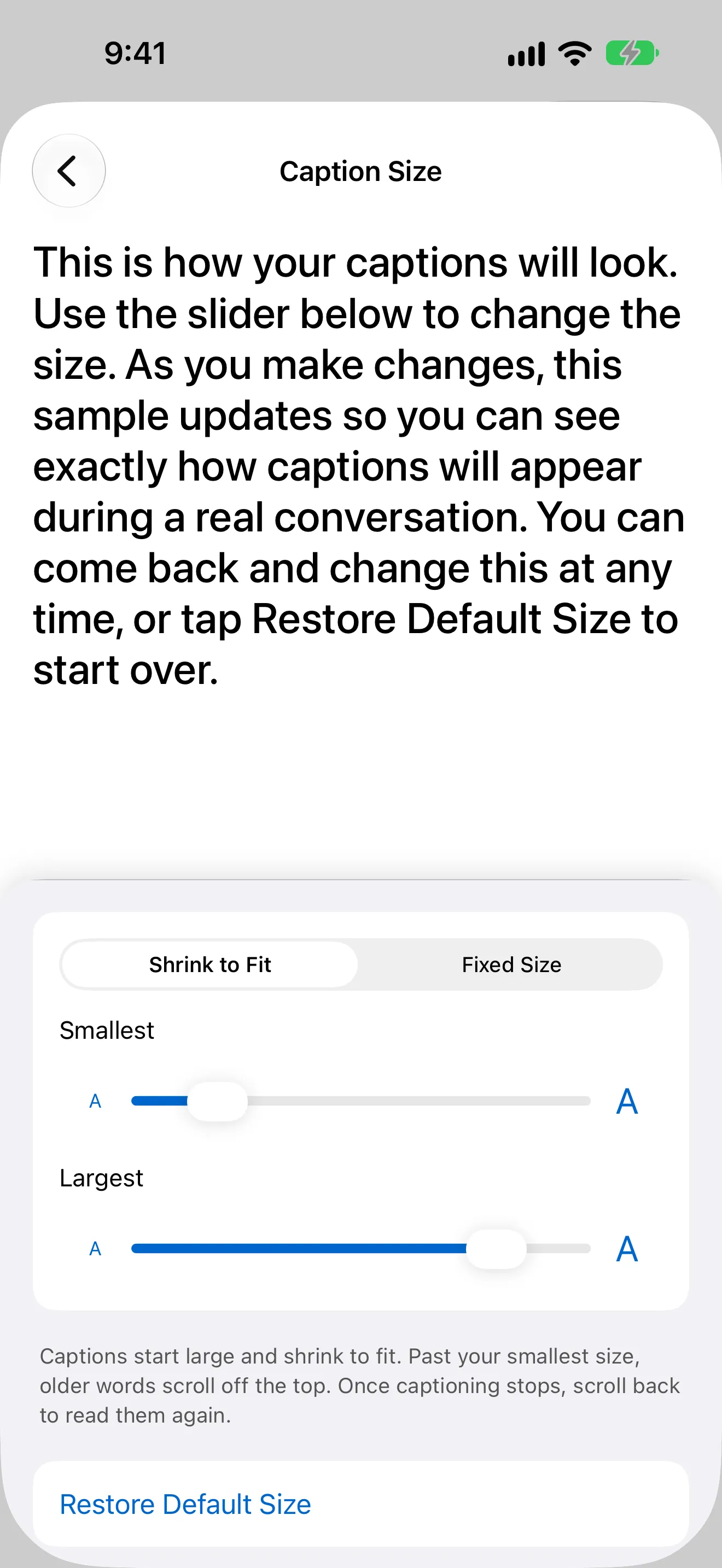
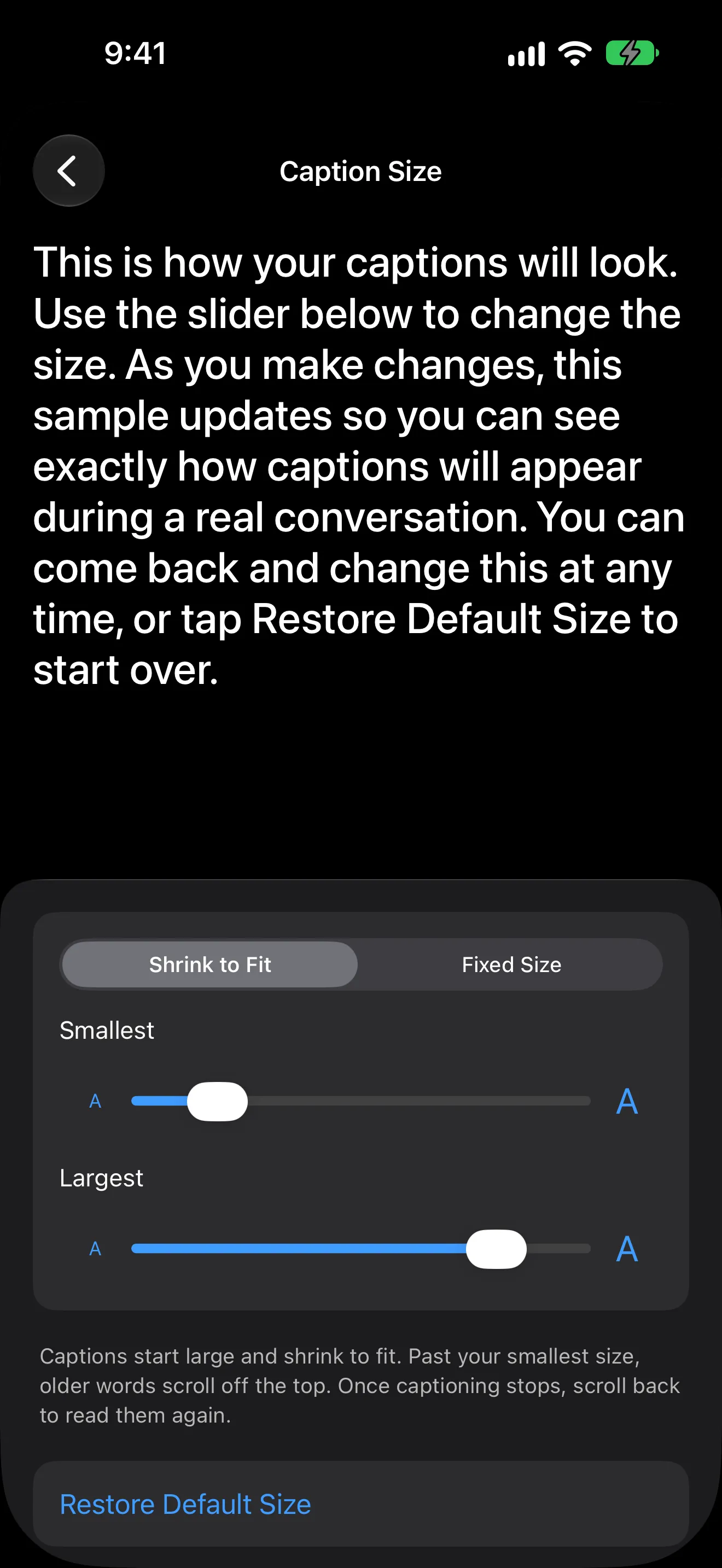
New Caption Size setting: let captions shrink to fit the screen, or pick a fixed size, up to very large text.
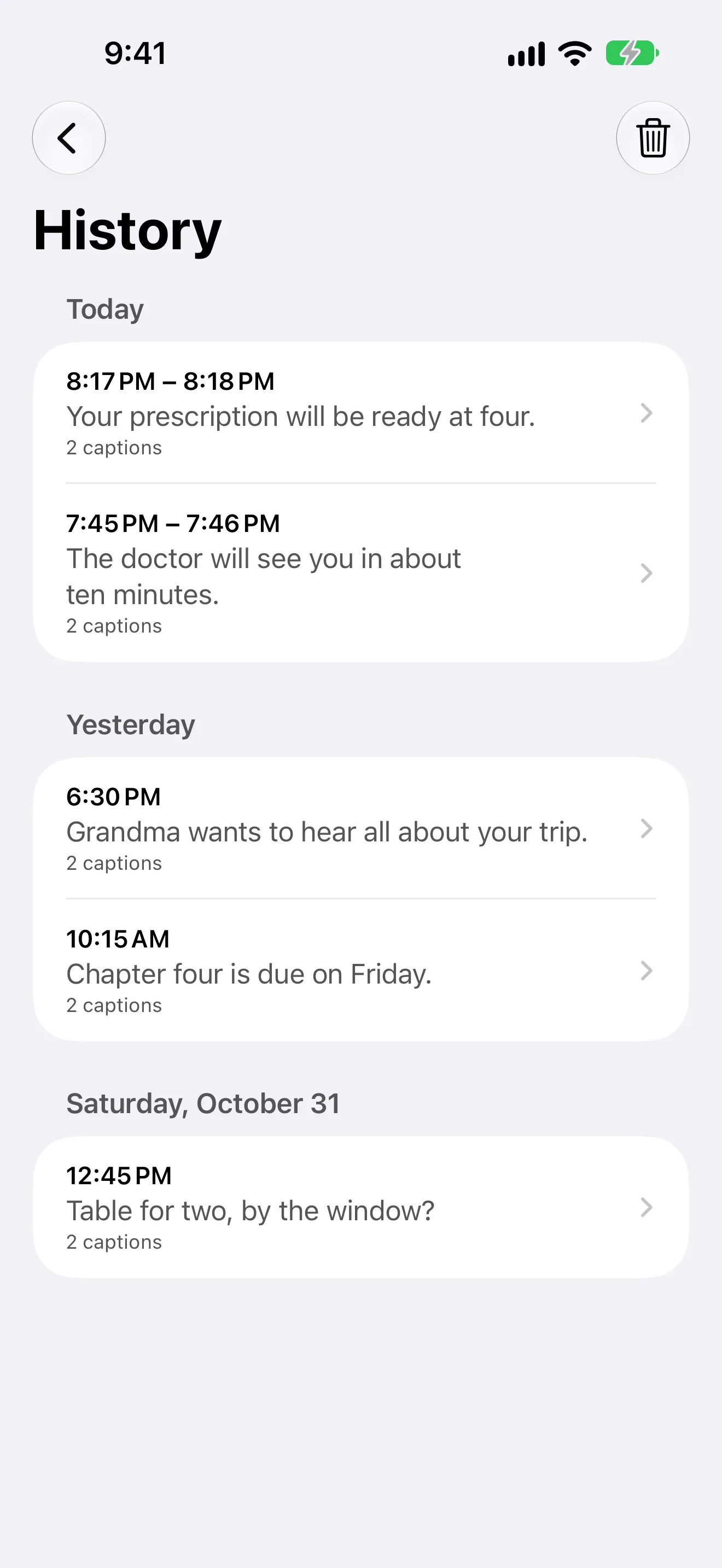
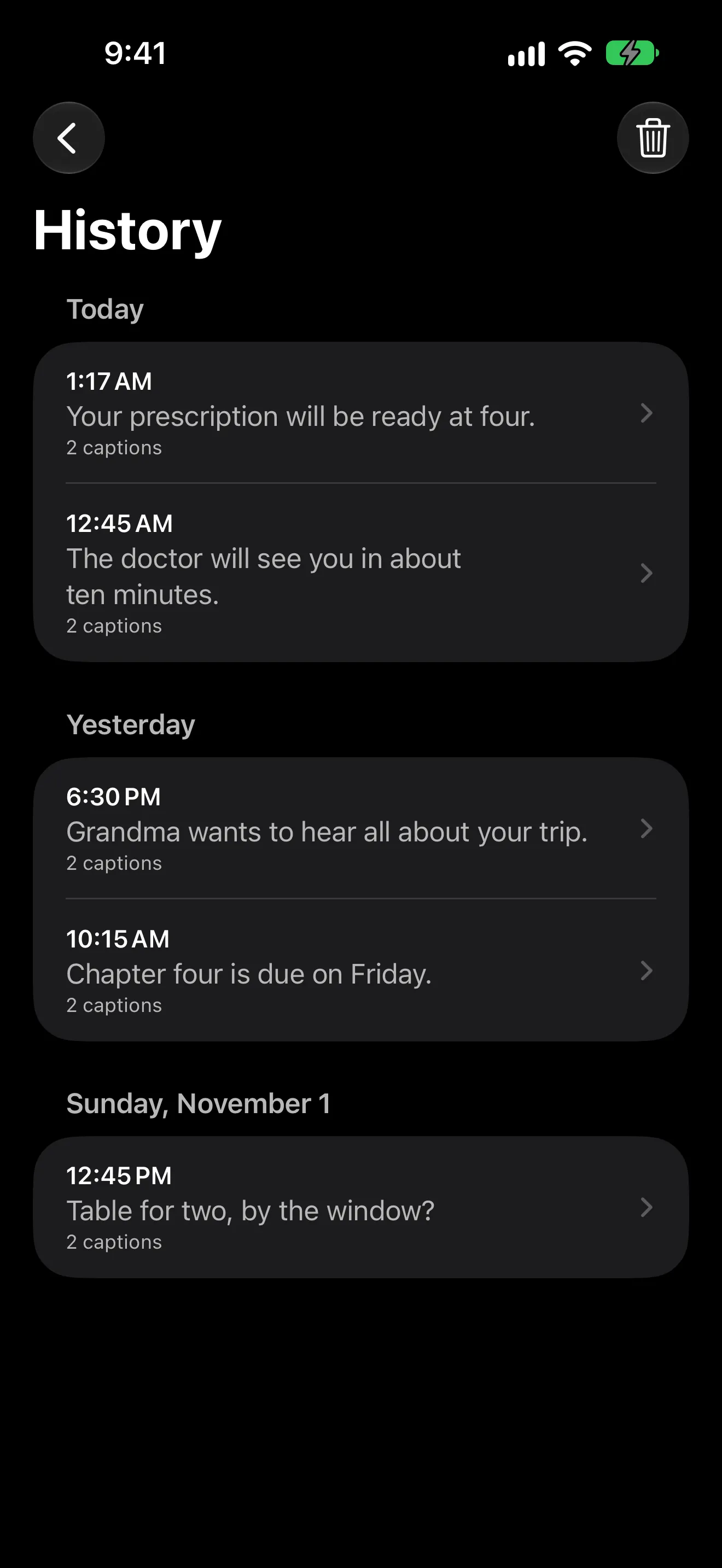
History now groups your sessions into conversations, with day headings that make an old one easy to find.
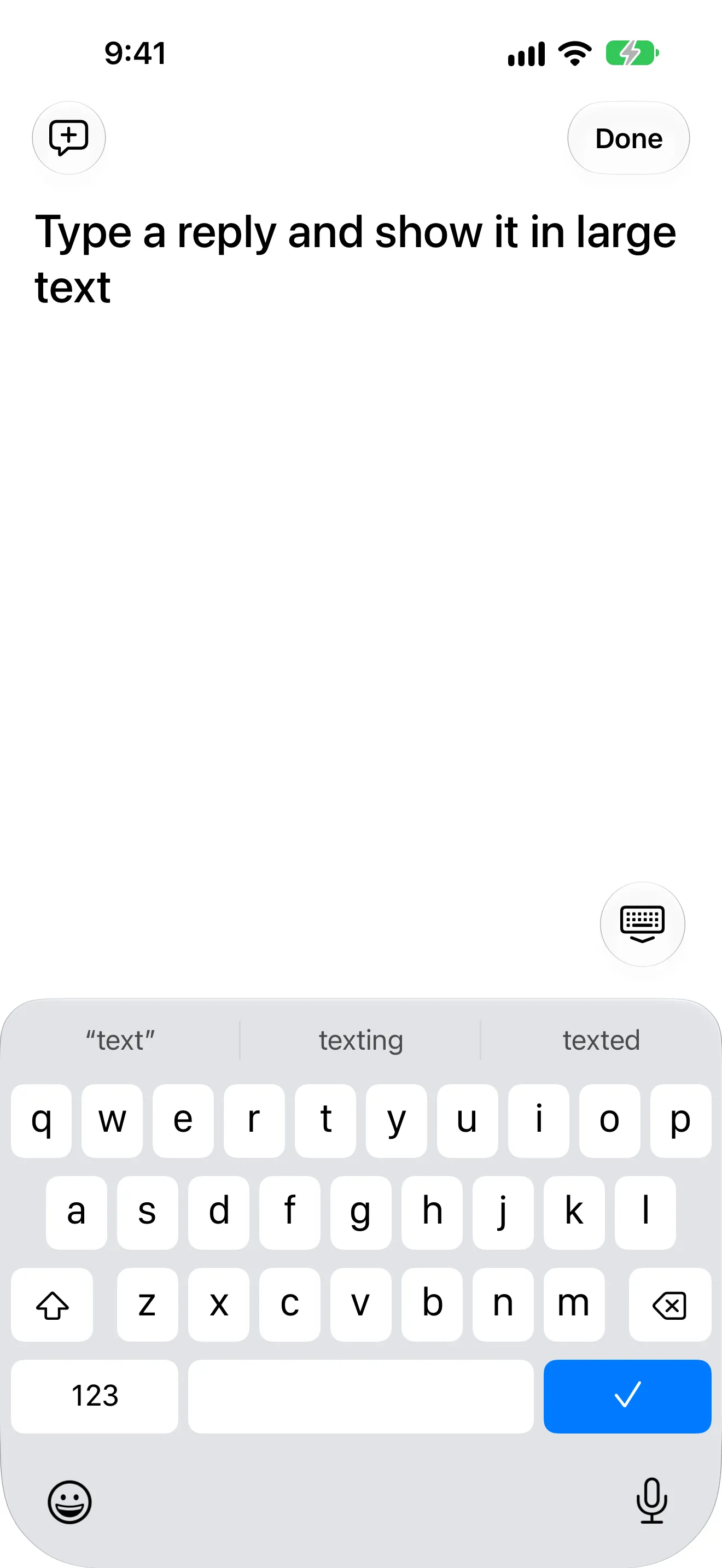
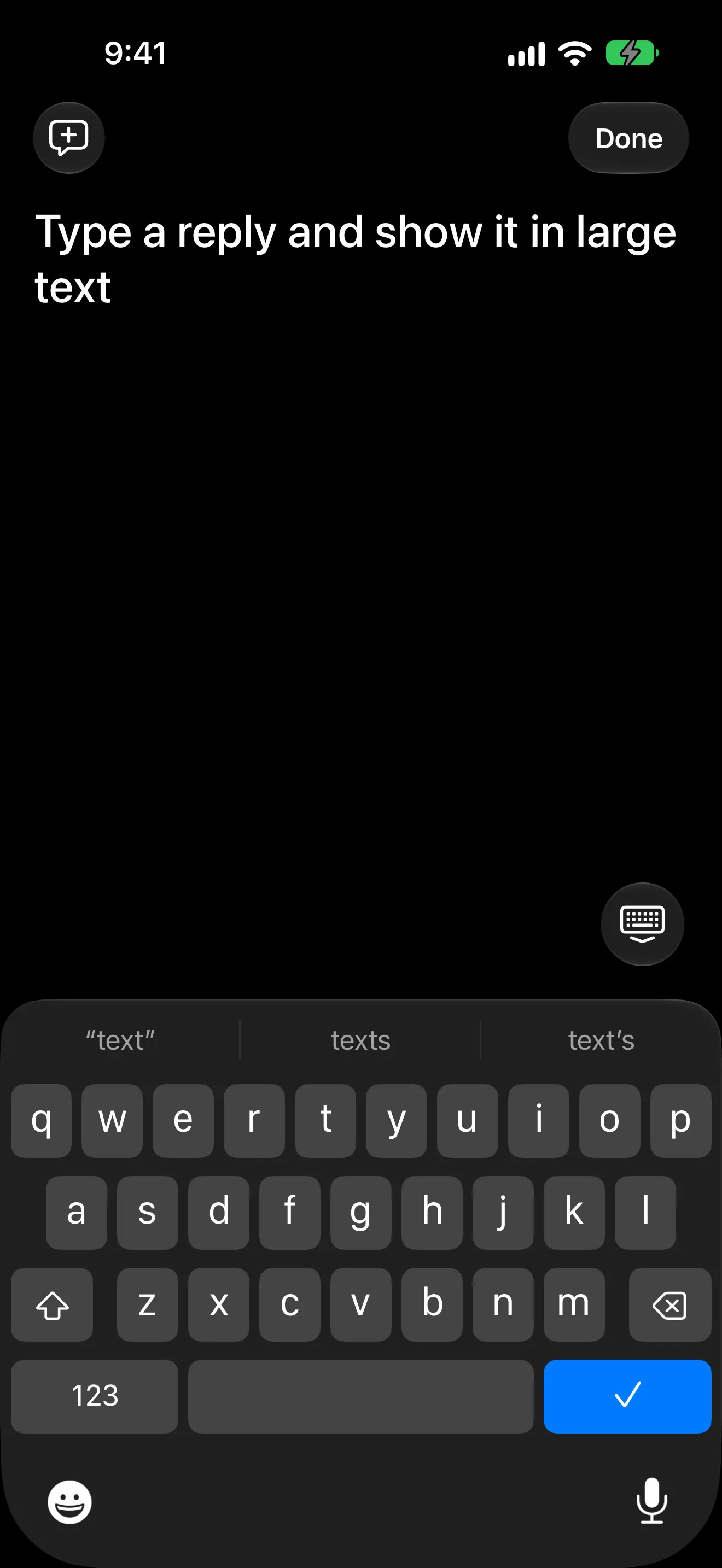
In typing mode, “Clear” is now “New”. It saves what you typed to History and starts a fresh note instead of erasing it.


Updates to 1.7
1.7.4November 2026
- While you caption, a mic symbol and the word “Listening” now show at the top of the caption screen, so you can tell eyeHear is listening without relying on the gray background.
- New installs, and reinstalls, now keep History for 30 days. If you already use eyeHear, your current setting stays as it is, so you won’t lose anything.
- The first time you open eyeHear, a short notice says how long captions are saved and asks you to let people know when a conversation is private. A reminder to let people know before you share also appears at the end of the History list and each conversation.
- Saved History is now protected by iOS Data Protection and can’t be opened while your device is locked.
- In typing mode, with a hardware keyboard or Full Keyboard Access, you can leave the editor with Escape or Command-Return. The keyboard’s bar also has a labeled Done button. Return still exits.
- On iPhone, deleting the last caption from a conversation closes the empty screen, and VoiceOver announces deletions in History. Deleting the conversation the caption screen is showing now clears it from the caption screen too.
- More accessibility fixes: at the largest text sizes, Theme and Caption Size Mode become menus whose text fits, and orange warning symbols have stronger contrast in Light mode.
- A page that fails to load in the in-app browser now says so, with Try Again. VoiceOver no longer stops on the “Press and hold” prompt for returning users and can copy the version from Settings. The Open Settings button has a larger tap target, and in landscape the “Press and hold” prompt is centered.
- Support and other web pages now open in Safari. Only the Privacy Policy, Consumer Health Data Privacy Policy, and Terms of Use open inside eyeHear.
1.7.3November 2026
- The caption screen now starts blank instead of showing your last caption. When a caption is done, tap New caption, the speech bubble with a plus sign, to clear the screen and start over. Nothing is deleted: History keeps your captions as before.
- If eyeHear has been in the background for 5 minutes or more, a finished caption clears when you come back, so an old conversation isn’t the first thing you see.
- In typing mode, notices no longer cover what you type, the keyboard button no longer covers the ends of your lines, and your text grows larger at the biggest text sizes.
- VoiceOver now names the typing area “Note” and reads typing mode in order.
- Error screens now show the support code right under the heading instead of further down.
- Stronger contrast on the Allow button when you first open eyeHear, on Try Again, and on the main button of error screens.
1.7.2October 2026
- On iPad with a keyboard, the menu bar now has Captioning, History, and Help menus. Press Command-L to start or stop captioning.
- In History, Clear All now asks you to confirm before it deletes your captions.
- When captioning can’t start because of something on your device, such as the microphone being in use or a setting that is turned off, eyeHear now names the likely cause and the next step. When speech recognition fails, Get Help opens the support form with the details already filled in.
- Better accessibility: stronger contrast on buttons and links, Voice Control names for the Caption Size buttons (“Smaller” and “Larger”), and the first-run hint now pulses a few times instead of forever.
- Fixed Size captions that run past the screen now open on the newest words instead of the oldest.
1.7.1October 2026
- Caption Size no longer needs dragging. In both Fixed Size and Shrink to Fit, tap the small or large A to make captions smaller or larger. Shrink to Fit now has a Smallest row and a Largest row.
- In History, touch and hold a conversation or a caption to share or delete it. Swiping still works too.
- The first-run welcome screen now shows what eyeHear does before asking for Microphone and Speech Recognition access. If you deny a request, eyeHear now takes you straight to a screen that helps you turn it on, instead of a dead end.
- Shrink to Fit captions that run past the screen now scroll to show older words instead of cutting them off, just like Fixed Size.
Earlier versions
- 1.6.8September 2, 2026Settings now shows your eyeHear version, so it’s easy to read back when you contact support.
- 1.6.7August 25, 2026If captioning can’t start, eyeHear now tells you why.